Showing posts with label J2EE. Show all posts

Tuesday, 17 December 2013

How to redirect first jsp page to another jsp page using login page ,apache tomcat [ J2EE PART 8 ]

How to redirect first jsp page to another jsp page

by using Login page


Now create A new jsp


Name it Account→


Finish→


Now type this code on Login.jsp

Full source code Login.jsp
  <%@page contentType="text/html" pageEncoding="UTF-8"%>
<!DOCTYPE html>
<html>
    <head>
        <meta http-equiv="Content-Type" content="text/html; charset=UTF-8">
        <title>JSP Page</title>
    </head>
    <body>
        <h1>My Login Page</h1>
        <%
        String UN=request.getParameter("user");
        String PW=request.getParameter("pass");
        if(UN.equals("admin")&&PW.equals("123"))
                       {
            response.sendRedirect("Account.jsp");
        }
        
       %>
       
</html>


Type this code in Accout.jsp


Full Source code for Accout.jsp
    <%@page contentType="text/html" pageEncoding="UTF-8"%>
<!DOCTYPE html>
<html>
    <head>
        <meta http-equiv="Content-Type" content="text/html; charset=UTF-8">
        <title>JSP Page</title>
    </head>
    <body>
        <h1>Welcome to my Account</h1>
        Login Success
    </body>
</html>


Full  Source code for index.jsp

<%@page contentType="text/html" pageEncoding="UTF-8"%>
<!DOCTYPE html>
<html>
    <head>
        <meta http-equiv="Content-Type" content="text/html; charset=UTF-8">
        <title>JSP Page</title>
    </head>
    <body>
        <h1>Hello World!</h1>
         <form action="Login.jsp" method="get">
            <label>Username </label> <input type="text" name="user"> 
            <label>Password</label> <input type="password" name="pass">
            <input type="submit" name="Submit">            

            
        </form> 
    </body>
    </body>
</html>       


Output→run file


How to jump from first jsp page to another jsp page ,apache tomcat [ J2EE PART 7 ]

How to jump from first jsp page to another jsp page

In this tutorial we are going to study following:-
☻How to make textfield. 
    <input type="text" name="user"> 
☻How to make a password field
   <input type="password" name="pass">
☻How to make a label.

       
 <label> Username </label>
or
 <label> Username

☻How to make a form.Introducing method "get post"
    <form action="Login.jsp" method="get">
 </form> 
☻how to make a submit button.
    <input type="submit" name="Submit">

Create a new JSP page
Name to Login


Then finish


Source code for index.jsp

<%@page contentType="text/html" pageEncoding="UTF-8"%>
<!DOCTYPE html>
<html>
    <head>
        <meta http-equiv="Content-Type" content="text/html; charset=UTF-8">
        <title>JSP Page</title>
    </head>
    <body>
        <h1>Hello World!</h1>
         <form action="Login.jsp" method="get">
            <label>Username </label> <input type="text" name="user"> 
            <label>Password</label> <input type="password" name="pass">
            <input type="submit" name="Submit">            

            
        </form> 
    </body>
    </body>
</html>       


Source code for Login.jsp
    <%@page contentType="text/html" pageEncoding="UTF-8"%>
<!DOCTYPE html>
<html>
    <head>
        <meta http-equiv="Content-Type" content="text/html; charset=UTF-8">
        <title>JSP Page</title>
    </head>
    <body>
        <h1>My Login Page</h1>
       
</html>


Output→click "run file"
----------------------------


On click→Submit→


Monday, 16 December 2013

How to make a JSP using Netbeans ,apache tomcat [ J2EE PART 6 ]

My First JSP 

First you want to open netbeans
then create a new project 
Next follow steps
☻Select  Java web →


☻ web Application→


☻Next give Project name→"MyJSP"→


☻Next you want select your server glass fish or apache tomcat
you must have one these server ( for installation of tomcat go here)


Now you already have a code to display hello world , to test it just right click→
"run file"→


Tuesday, 8 October 2013

Setting up apache tomcat in linux-eclipse [ J2EE part 2.1 ]


if you got 404 error ,goto Here

Friday, 4 October 2013

How to make a servlet using eclipse ,apache tomcat [ J2EE PART 5 ]


A Servlet is a Java class in Java EE that conforms to the Java Servlet API, a protocol by which a Java class may respond to HTTP

Right click on myfirstservletproject→New→Other


Select Servlet→Next→


Type java package:com.mamstricks.myfirstservlet→Class name:Firstservlet→


→Select /FirstServlet from URL mapping→EDIT→


→Type"path" in addition to "/FirstServlet"→/FirstServletpath
Its just for understand the URL mapping ,its not necessary


Select Option rounded→Finish


Now we get this class
have a look at screenshot and focus on to yellow marking and red rectangle window


Now type this line as shown in picture
  
System.out.println("From doget method ");
        
    
i will tell you more about doget method  in following tutorials, Dont worry :-)
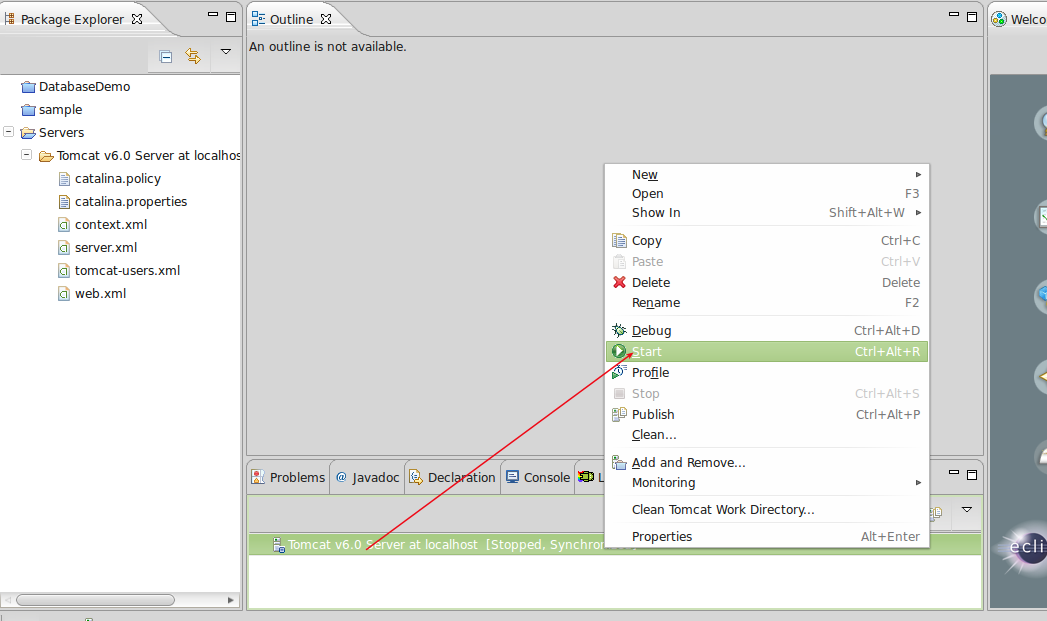
Run the servlet by right clicking myservlet.java→run as server


→Click→yes


Now this message     System.out.println("From doget method ");  printed in log
So how to print "hello" in browser?
Just write this this two line
       

PrintWriter pw=response.getWriter();
pw.println("Hello");
        
    
So what is this "PrintWriter" ,"getWriter" doing?


PrintWriter pw = response.getWriter();
getWriter() simply returns a "PrintWriter" object that can send character text to the client.The PrintWriter uses the character encoding returned by getCharacterEncoding(). If the response's character encoding has not been specified as described in getCharacterEncoding (i.e., the method just returns the default value ISO-8859-1), getWriter updates it to ISO-8859-1.


Now refresh Your page pointed by arrow


We have done !!!!!!!!!!!

   Please Dont forget to suggest & correct my language  :P
if you have any doubt please comment ...


Sunday, 29 September 2013

How to simply run a HTML file in apache tomcat 7 using elipse [ J2EE PART 4 ]

Print HELLO using HTML and apache tomcat server

Right click on Package explorer→New→Other


Dynamic Web Project→Next

Name the project any thing like "myfirstwebproject"
Check Tick on "use deault location"→Next


→Next


Select generate web.......→Finish


→Yes


Now our new project is created


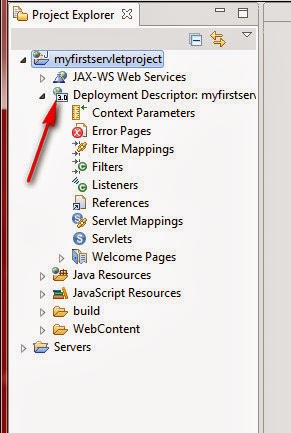
Select Deplyement Descrip... Have a look ;)


Now goto→window→Show view→navigator
Click WebContent→double click web.xml→
study the things :)

Now we have seen welcome list containing index.html,index.jsp etc but we didnt created such extension files
From here we are going to make html file
Right clic on WebContent→New→Other→

→Web→HTML File→Next


Name index.html that we have seen on web.xml
Select the folder WebContent→finish
Now we can type our html code, like typing in notepad :-D


After typing our code


Goto web.xml and remove all welcome list except index.html


Now we can Run our project
Right click on myfirstservletproject→Run As→Run on Server


Click OK→


Click Next→


Select our project name→Finish

See the results!!!!
 enjoy programming !!!!!!

Thank you

Facebook Twitter Delicious Digg Stumbleupon Favorites More

 
Design by Free WordPress Themes | Bloggerized by Lasantha - Premium Blogger Themes | coupon codes